> ## Documentation Index
> Fetch the complete documentation index at: https://makeswift-sasha-eng-8460-create-a-guide-for-troubleshooting.mintlify.site/llms.txt
> Use this file to discover all available pages before exploring further.
# Creating your site
> Learn the basics of building with Makeswift, including components, theming, responsive design, and publishing.
If you already have a site and want to create a new one, click the **Create new site** button under the site list dropdown. If this is your first time using Makeswift, [create a free account](https://app.makeswift.com/signup). You'll then be taken to the page for creating a new site.
You have two options to get started: **Start with the builder** or **Integrate with Next.js**.
Starting with the Visual Builder utilizes Makeswift's [default
host](/product/site/hosting#default-host), while Integrating with Next.js will
prompt you to utilize your own [custom
host](/product/site/hosting#custom-host).
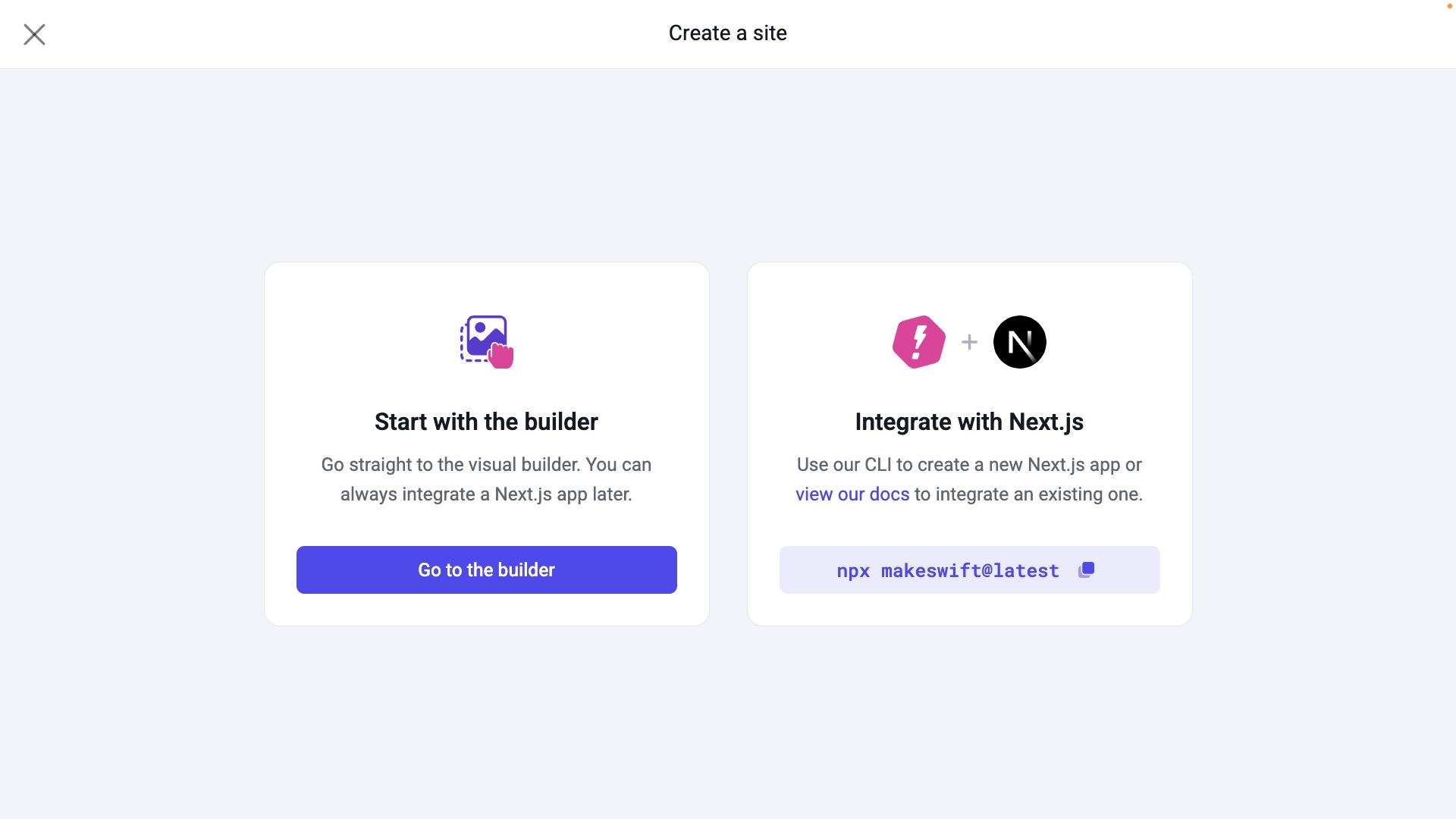
Click **Go to the builder**, and you'll have a list of templates to choose from. Templates come with existing assets (images, logos, etc.), colors, text styles, and layouts for you to begin customizing.
Choose the **Venture** template and click **Use this site**.
## Visual Builder overview
Once your new site is created, you'll be taken to the Visual Builder which is composed of 4 main sections:
Explore your sites, pages, layers, files, and settings.
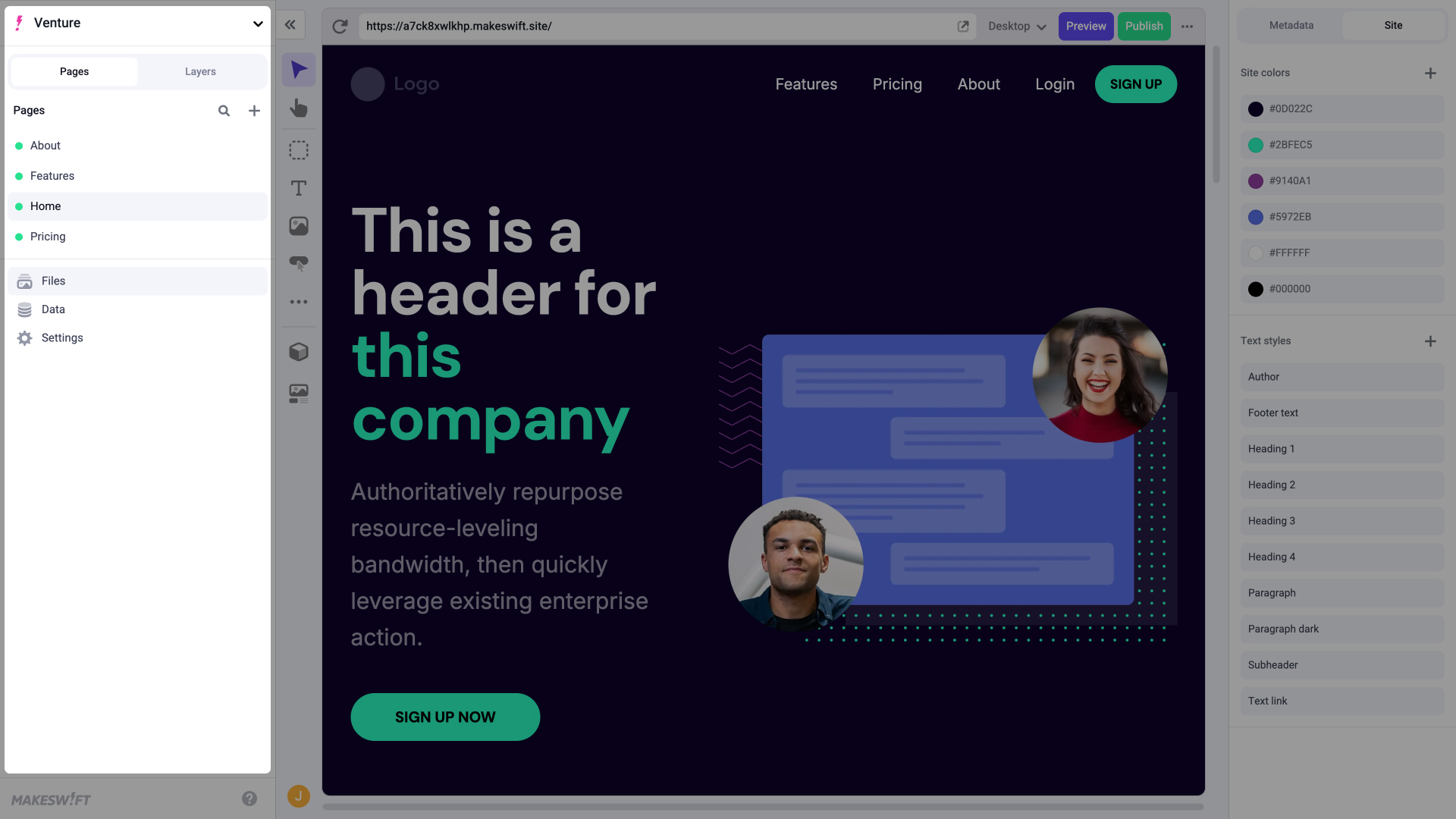
Access components to add to the Canvas.
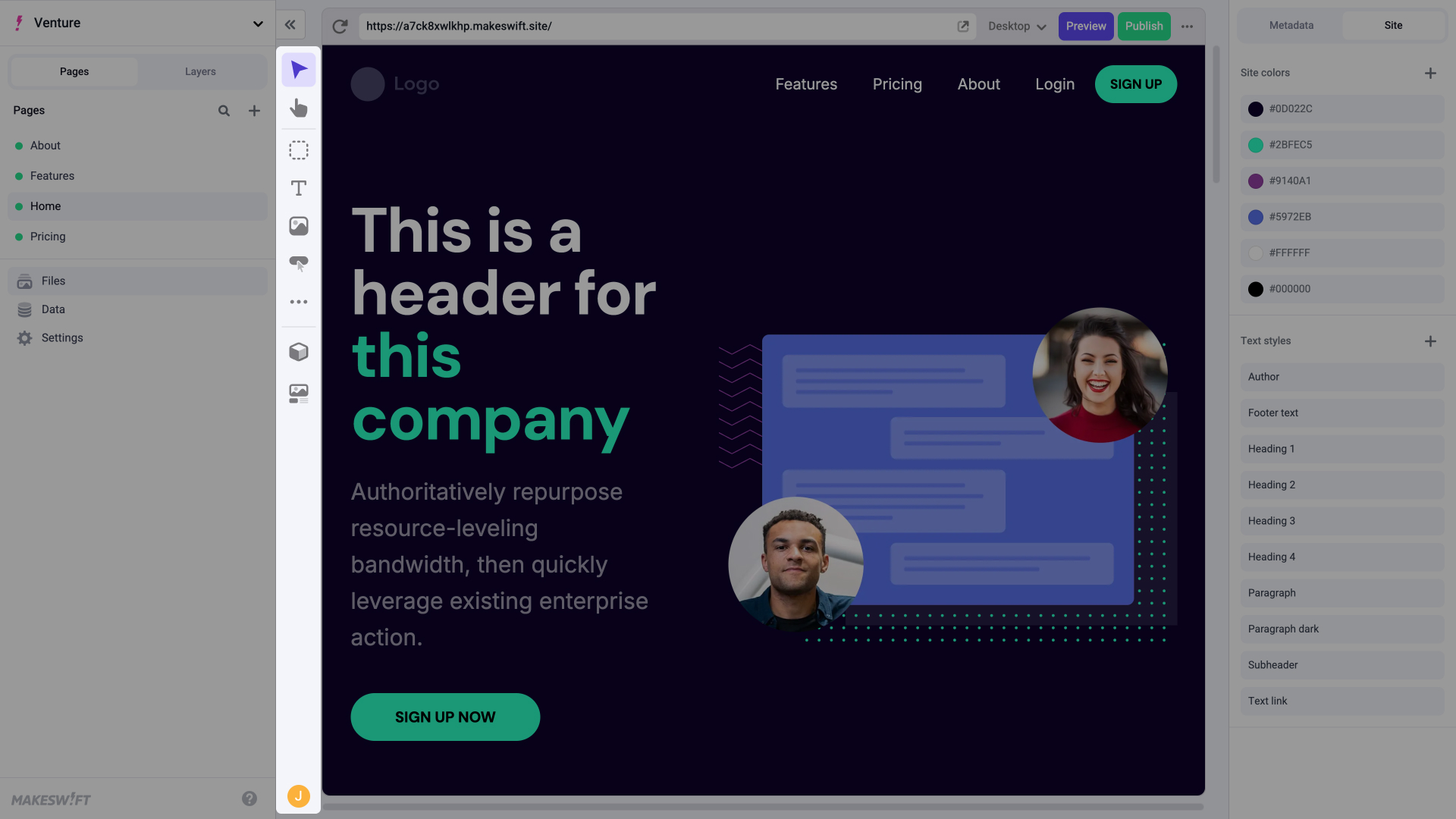
Build your pages and see them come to life with an exact preview.
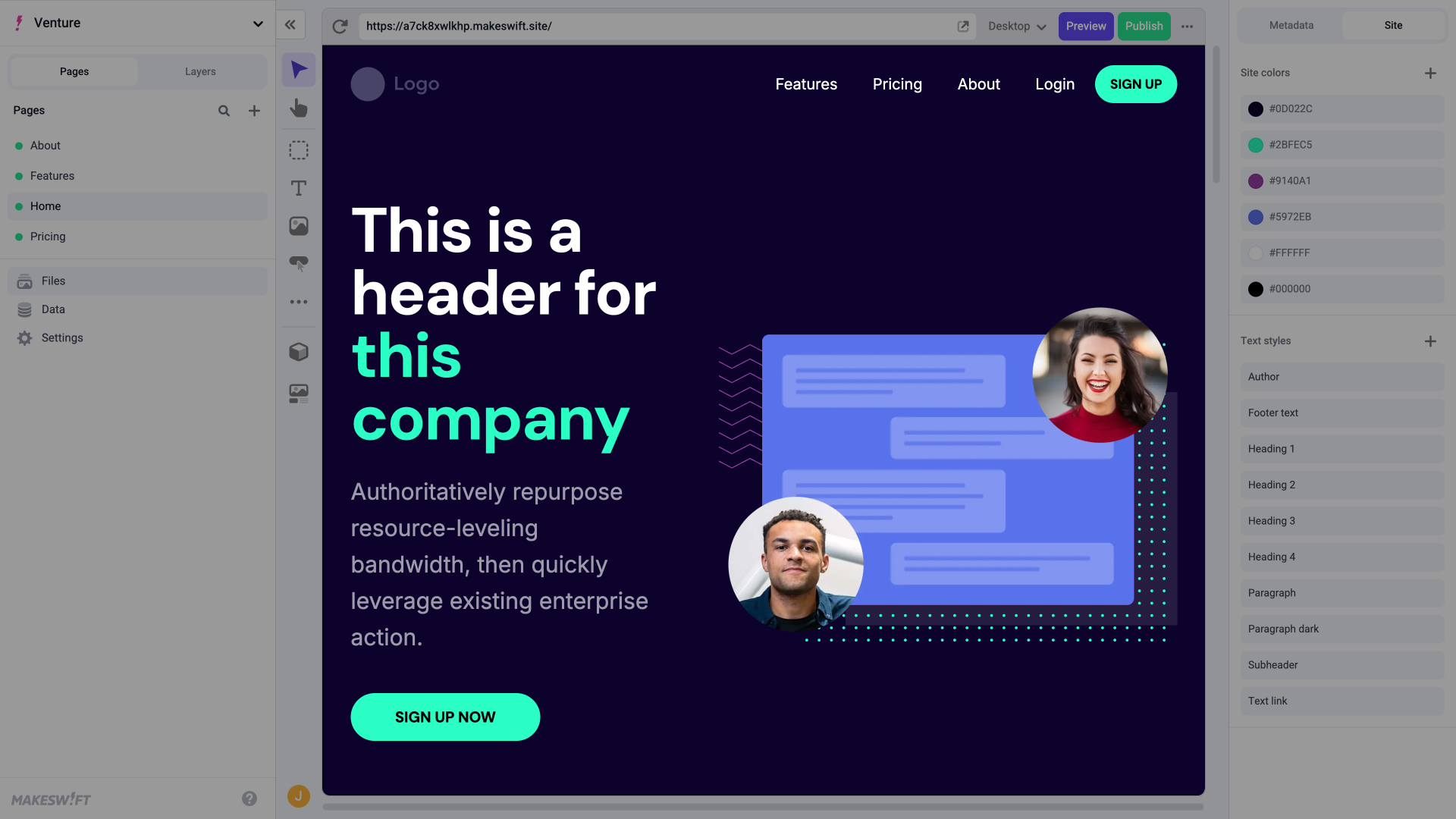
Edit properties of a page, site, or component.
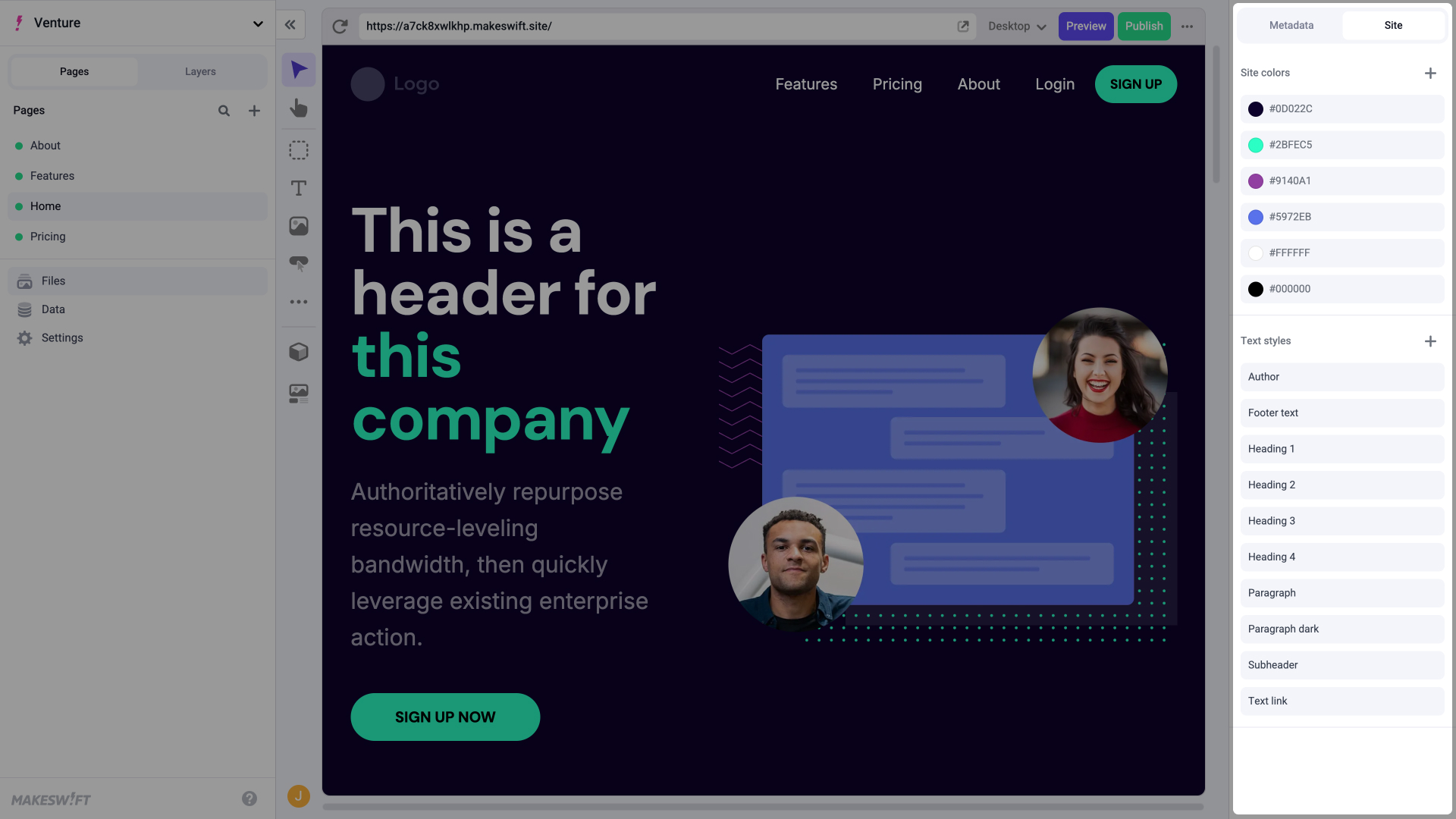
Before moving on, take a few minutes to explore the Canvas and its components. Click on any component in the Canvas to see its corresponding properties in the Properties Sidebar.
## In the next section...
You'll learn about how to customize components within the Makeswift Visual Builder.