> ## Documentation Index
> Fetch the complete documentation index at: https://makeswift-sasha-eng-8460-create-a-guide-for-troubleshooting.mintlify.site/llms.txt
> Use this file to discover all available pages before exploring further.
# Vercel
> Learn how to deploy your Makeswift application to Vercel.
This guide uses the Vercel dashboard to deploy your Makeswift application.
Alternatively, you can use the [Vercel CLI](https://vercel.com/docs/cli).
## Prerequisites
You'll need a Makeswift site. If you don't already have one, you can follow the [developer quickstart](/developer/quickstart) or [installation guide](/developer/app-router/installation) to get started. You'll also need:
* A Git repository ([full list of Vercel supported Git providers](https://vercel.com/docs/deployments/git))
* Vercel account ([sign up](https://vercel.com/signup))
## Create new project in Vercel
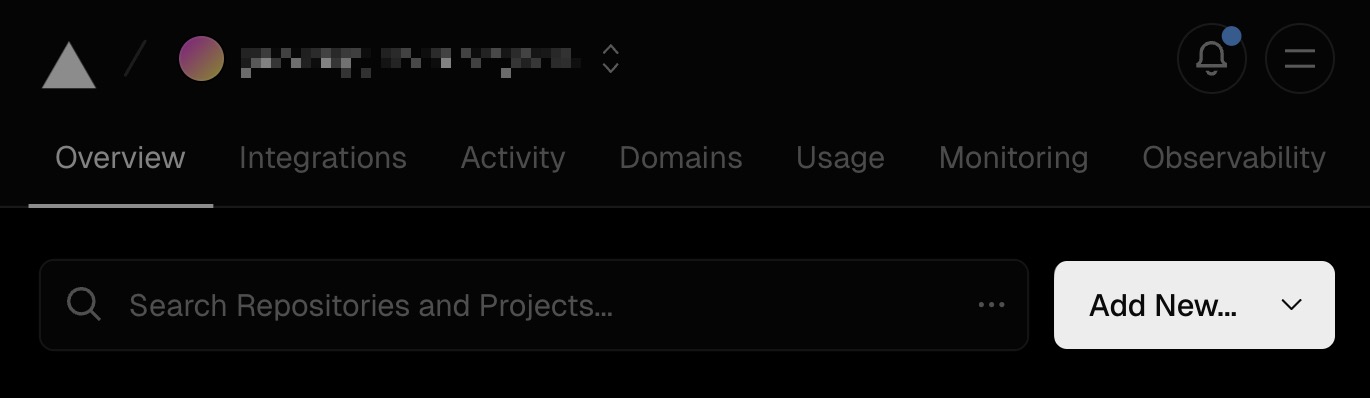
Within the Vercel dashboard, choose **Add New\... > Project** from the top right of the **Overview** page.
 ## Connect to Git repo
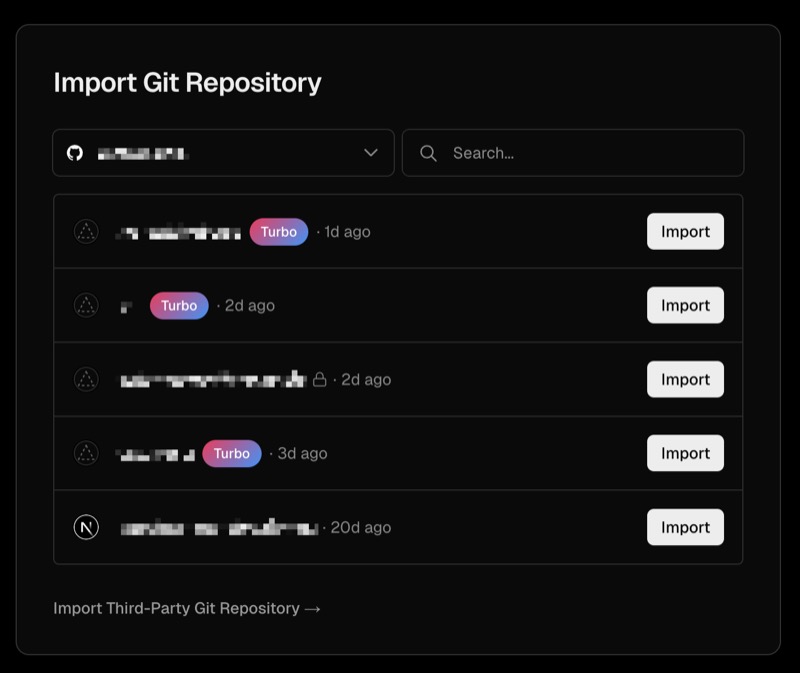
In the **Import Git Repository** section, choose your Git repository. If you haven't already, you may need to authorize Vercel to have the correct access to your Git provider.
## Connect to Git repo
In the **Import Git Repository** section, choose your Git repository. If you haven't already, you may need to authorize Vercel to have the correct access to your Git provider.
 ## Project settings
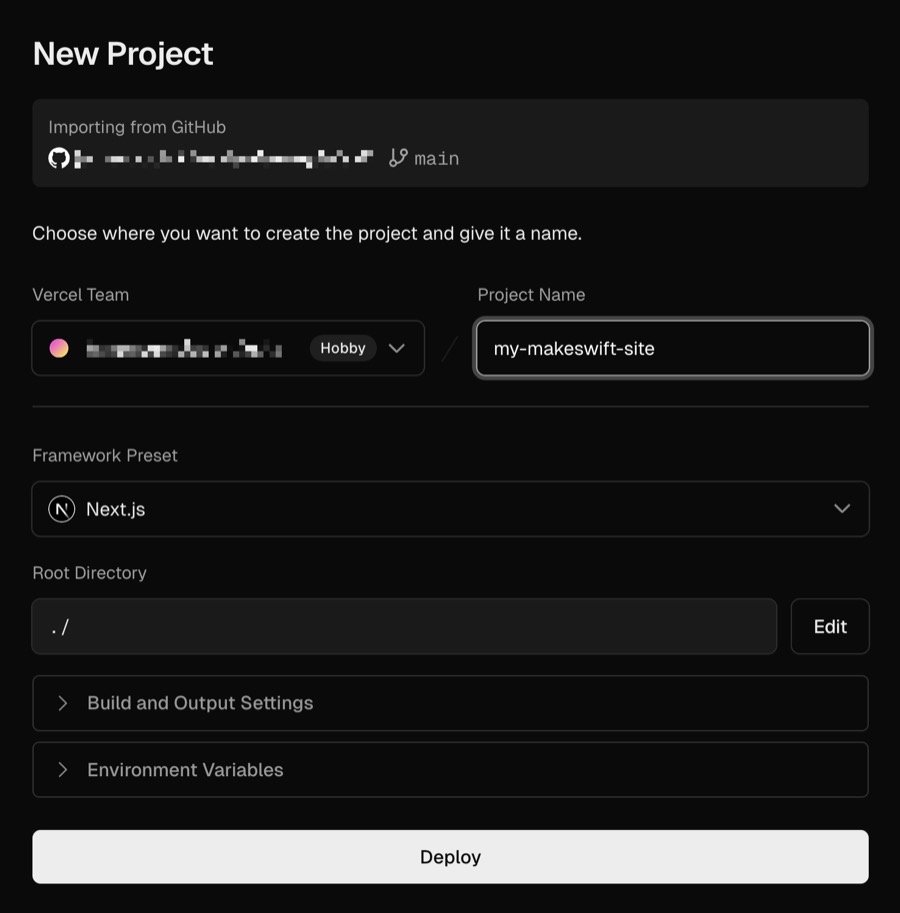
Vercel will automatically attempt to generate the correct settings for your project. Ensure these settings match your project setup.
## Project settings
Vercel will automatically attempt to generate the correct settings for your project. Ensure these settings match your project setup.
 ### Environment variables
You'll need to include your Makeswift API key which you can find in the Makeswift Visual Builder under **Settings > Host**.
### Environment variables
You'll need to include your Makeswift API key which you can find in the Makeswift Visual Builder under **Settings > Host**.
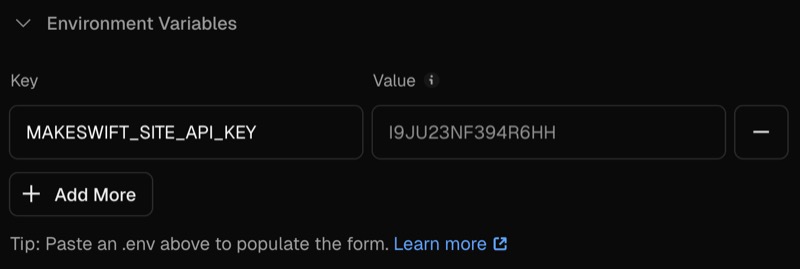
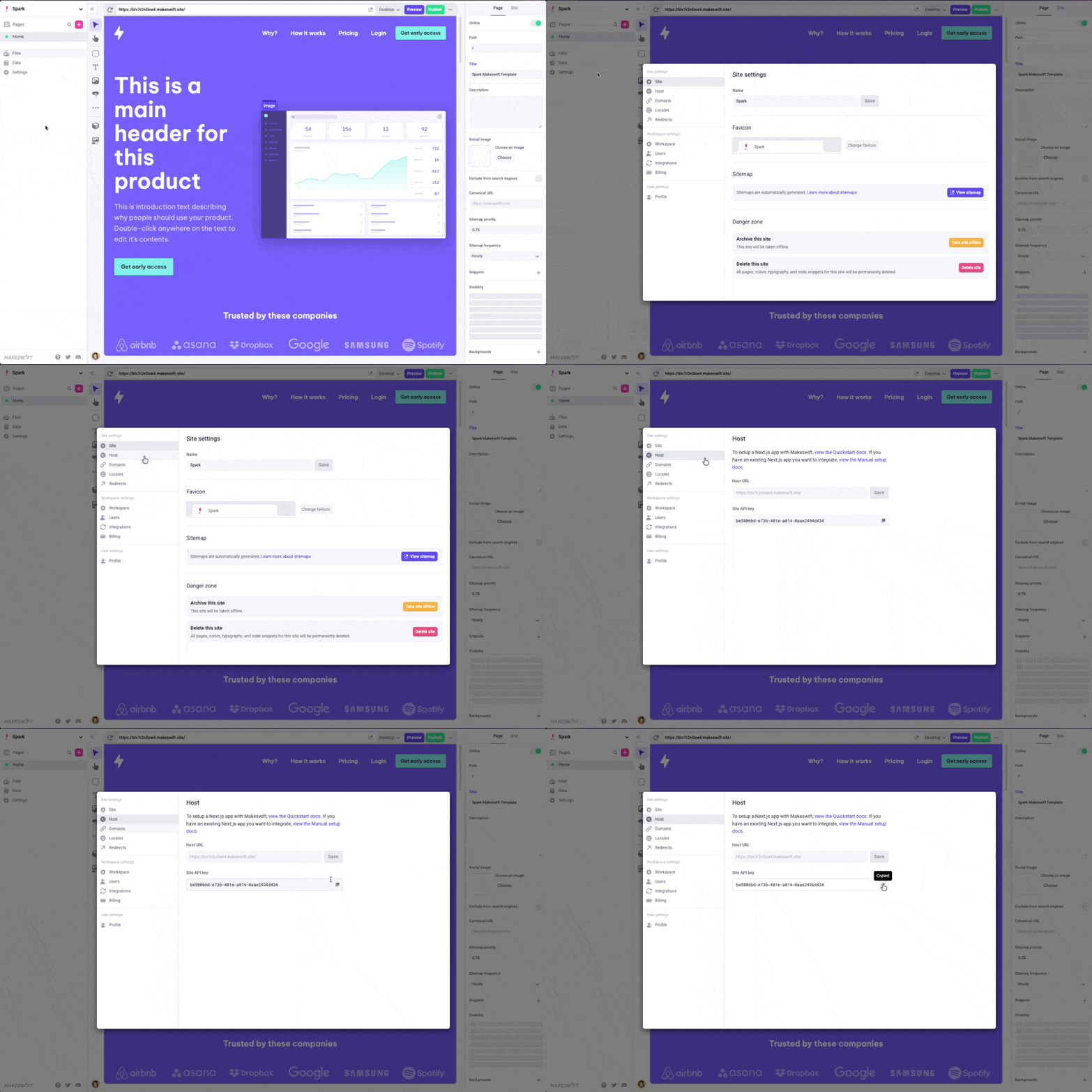 Add your API key to the **Environment Variables** section with a key of `MAKESWIFT_SITE_API_KEY`.
 ## Deploy
After you finished configuring your settings, click the **Deploy** button. Vercel will build and deploy your Makeswift application. After the build has finished, you should see a success message with a link to your deployed site.
## Deploy
After you finished configuring your settings, click the **Deploy** button. Vercel will build and deploy your Makeswift application. After the build has finished, you should see a success message with a link to your deployed site.